
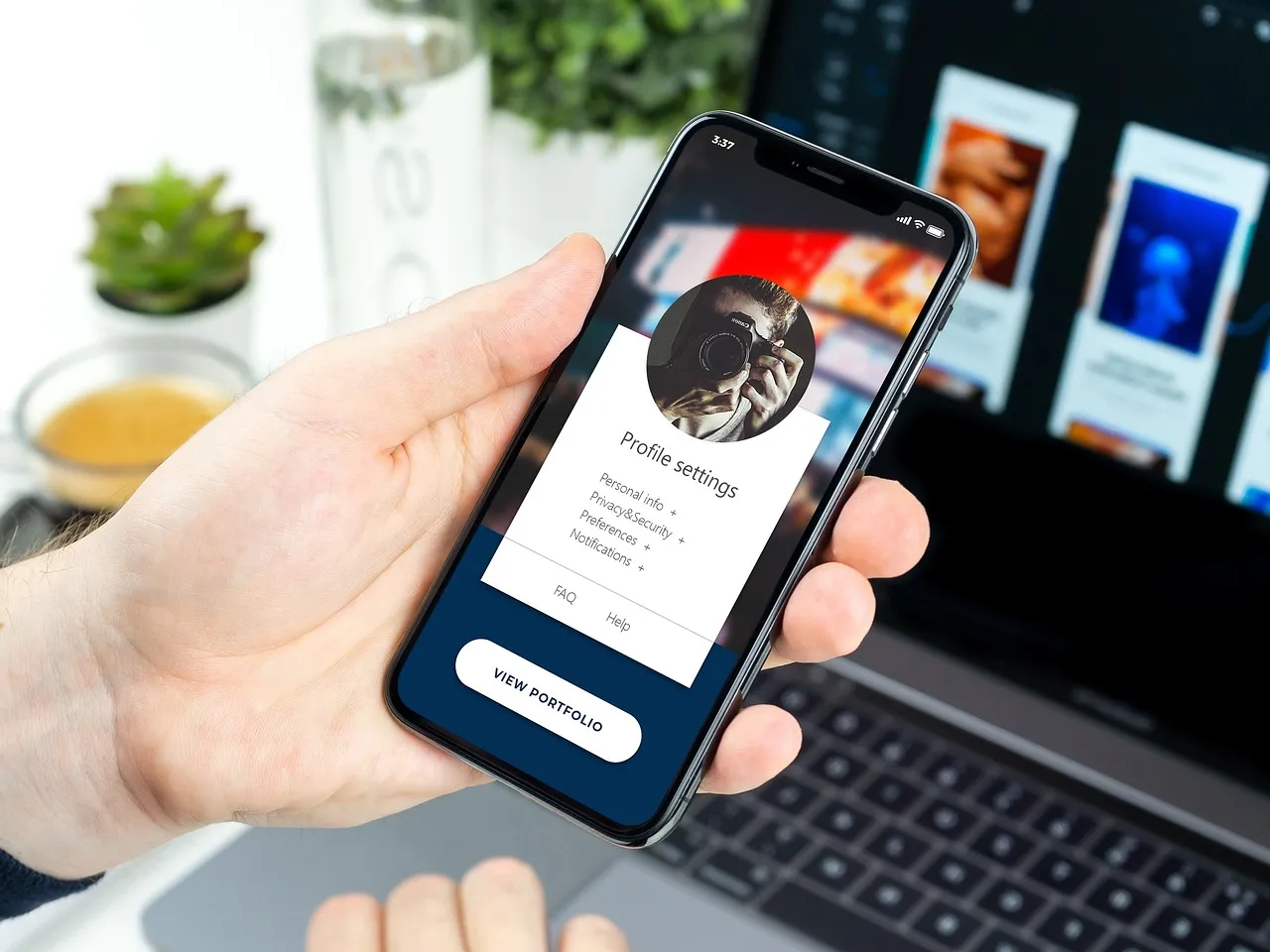
10 iPhone Settings You Must Turn Off Now to Save Battery and Privacy
5 Essential iPhone Privacy and Battery Settings You Need to Change Right Now
Your iPhone is a powerful device, but out of the box, it comes with default settings that can drain your battery and expose your data to unnecessary tracking. Whether you're concerned about privacy or simply want to extend battery life between charges, adjusting a few key settings makes a significant difference. Below are five critical changes that balance performance, privacy, and power efficiency.
1. Disable Background App Refresh for Non-Essential Apps
Background App Refresh allows apps to check for new content when running in the background. While useful for messaging or navigation apps, it's often unnecessary for social media, games, and news apps that you open manually.
How to configure this:
- Open Settings > General > Background App Refresh.
- You'll see a list of all installed apps. Toggle off the switch for apps like Facebook, Instagram, Twitter, games, and any news or shopping apps.
- Keep it enabled only for essential apps such as Messages, WhatsApp, Maps, or Mail if you need real-time updates.
Why this matters:
Each time an app refreshes in the background, it uses both battery power and cellular data. For apps that don't need constant updates, disabling this feature can save up to 15-20% of your daily battery life. It also reduces data usage if you're on a limited plan.
Practical tip: If you're unsure which apps to disable, check your battery usage stats first. Go to Settings > Battery and look at the "Background Activity" column. Apps with high background activity are prime candidates for disabling.
For businesses looking to build apps that respect user privacy and battery life, exploring custom software development services can help create efficient, user-friendly applications.
2. Turn Off Location Services for System Services
Location Services are essential for maps and ride-sharing apps, but many system-level location features run silently in the background, collecting data you may not need.
Step-by-step guide:
- Navigate to Settings > Privacy & Security > Location Services.
- Scroll to the bottom and tap System Services.
- Review the list and disable options that are not critical:
Why this matters:
Significant Locations, in particular, creates a log of places you visit frequently, including home, work, and gym. This data is stored locally but can be accessed if someone gains physical access to your device. Turning it off is a straightforward privacy win.
Practical tip: After disabling these, you can still use maps and navigation apps normally. They only need location access when actively in use, which you can control per app.
For organizations seeking to implement privacy-first solutions, digital marketing and SEO strategies can be designed to respect user data while delivering targeted campaigns.
3. Limit Ad Tracking and Personalized Ads
Apple has made strides in privacy with App Tracking Transparency, but there are additional settings to reduce ad targeting.
How to configure:
- Go to Settings > Privacy & Security > Apple Advertising.
- Toggle off Personalized Ads. This prevents Apple from using your App Store, Apple News, and Stocks activity to serve targeted ads.
- Next, go to Settings > Privacy & Security > Tracking.
- Enable Allow Apps to Request to Track (this is on by default). Then, review the list of apps that have requested tracking and deny any you don't trust.
Why this matters:
Even with App Tracking Transparency, Apple itself collects data for its own advertising platform. Turning off Personalized Ads stops Apple from building a profile of your interests. The Tracking setting ensures third-party apps cannot follow you across other apps and websites without explicit permission.
Practical tip: After making these changes, you may still see ads, but they will be less targeted. Your personal data is no longer being sold to advertisers.
Companies looking to build compliant ad systems can benefit from custom technology solutions that prioritize user consent and data minimization.
4. Disable Push Email and Fetch Less Frequently
Email push notifications can be a major battery drain, especially if you have multiple accounts. Every time a new email arrives, your iPhone wakes up and checks the server.
Configuration steps:
- Open Settings > Mail > Accounts > Fetch New Data.
- At the top, you'll see Push. Toggle it off entirely if you don't need instant email delivery.
- Below, you'll see each email account. Tap each one and set Fetch to Manual or Hourly.
Why this matters:
Push email keeps a constant connection to the server, which uses battery and data. Setting to Manual means your iPhone only checks for new email when you open the Mail app. Hourly is a good compromise if you need periodic updates.
Practical tip: For critical work emails, consider using a dedicated app like Outlook or Spark that offers more granular notification controls. For personal accounts, Manual fetch works fine.
Advanced tip: If you use Gmail, you can also adjust fetch settings within the Gmail app itself. Go to Gmail > Settings > your account > Data usage and set sync frequency.
For businesses needing custom email integration, website development services can create tailored solutions that optimize server communication.
5. Turn Off Background App Refresh and Auto-Downloads
This final setting combines two battery-draining features: background refresh and automatic downloads from the App Store.
How to disable:
- Background App Refresh: Go to Settings > General > Background App Refresh and toggle it off entirely. Alternatively, you can disable it per app as described in point 1.
- Auto-Downloads: Go to Settings > App Store.
Why this matters:
Auto-downloads can consume significant data and battery, especially if you have multiple Apple devices. App Updates running in the background can also slow down your phone during critical moments. Disabling these gives you control over when updates happen.
Practical tip: Instead of auto-updates, manually update apps once a week when connected to Wi-Fi. Go to App Store > your profile > scroll down to see pending updates and tap "Update All."
Security note: While disabling auto-updates saves battery, ensure you still update apps regularly for security patches. Set a weekly reminder to check for updates manually.
For enterprises managing multiple devices, ERP and CRM solutions can streamline update management and device policies.
Why These Settings Matter for Your Daily Use
Beyond battery savings and privacy, these adjustments improve overall device performance. An iPhone that isn't constantly refreshing apps, checking locations, or fetching emails runs faster and stays cooler. You'll notice:
- Longer battery life between charges
- Reduced cellular data usage
- Fewer background processes slowing down the device
- Enhanced privacy from reduced data collection
The Bigger Picture: Privacy as a Feature
Apple has positioned privacy as a core differentiator, but default settings still lean toward data collection. By taking these five steps, you align your device with your personal privacy preferences. This is especially important if you use your iPhone for work, as corporate data can be exposed through location tracking or background app activity.
Final Thoughts
These settings are easy to change and take less than five minutes total. The benefits—longer battery life, reduced data usage, and stronger privacy—are immediate. Start with the Background App Refresh and Location Services changes, then move to ad tracking and email fetch settings. Finally, disable auto-downloads to prevent future surprises.
Your iPhone is a powerful tool, but it works best when configured for your needs. Take control today and enjoy a faster, more private, and longer-lasting device.
Have Specific Digital Questions?
Connect with our developers directly to map your project or system design.