
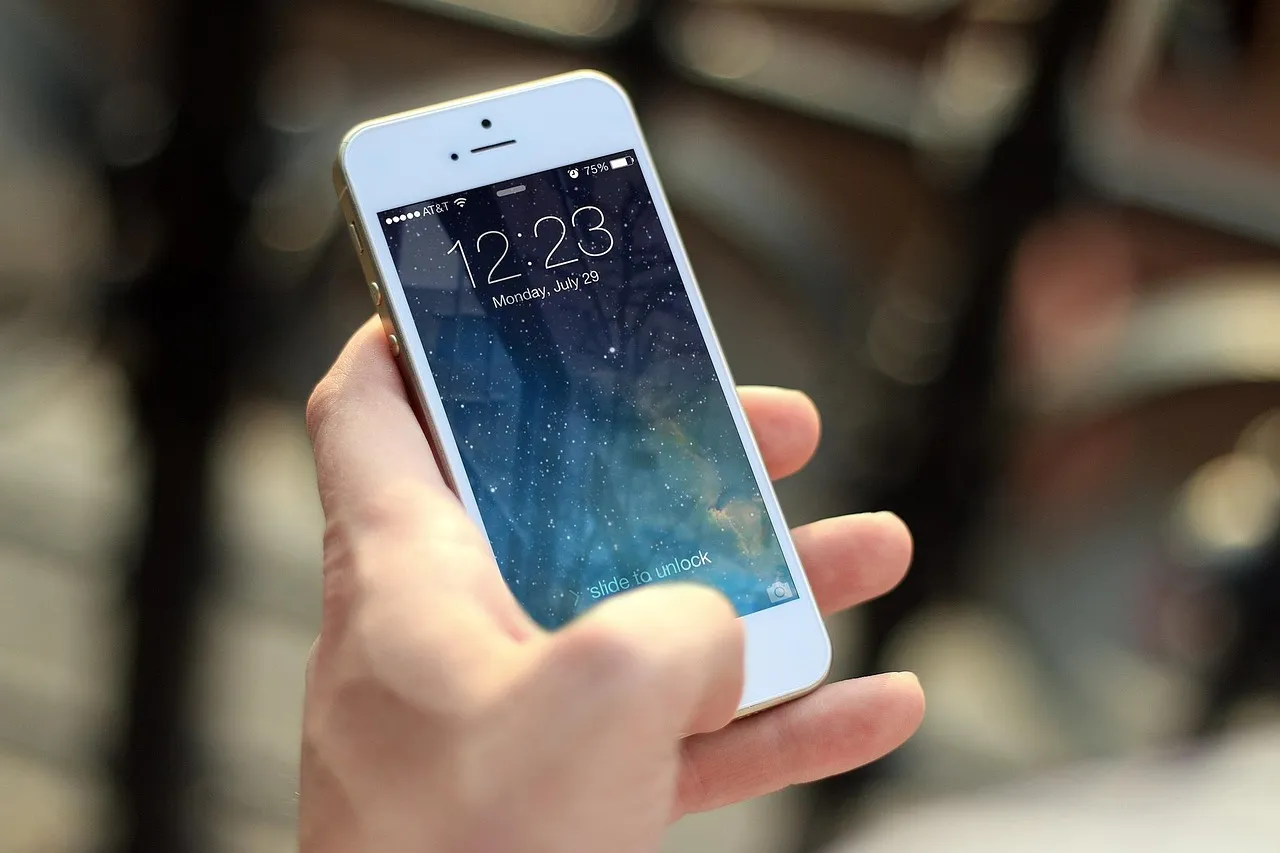
10 iPhone Settings You Must Turn Off Right Now to Save Battery
5 Essential iPhone Battery Optimization Tips for iOS 17 Users
Battery life remains one of the most critical concerns for iPhone users, especially as apps become more feature-rich and background processes multiply. While Apple's iOS 17 includes several power management improvements, many users still struggle to get through a full day on a single charge. The good news is that with a few strategic adjustments, you can significantly extend your iPhone's battery life without sacrificing core functionality.
Below are five proven methods to optimize your iPhone's battery performance, complete with step-by-step instructions and practical insights.
---
1. Disable Background App Refresh for Non-Essential Apps
Background App Refresh allows apps to check for new content—like social media feeds, news updates, or email—even when you're not actively using them. While convenient, this feature is one of the biggest battery drains on modern iPhones.
How to disable it:
1. Open Settings > General > Background App Refresh. 2. You'll see a list of all installed apps with toggle switches. 3. Turn off the toggle for apps that don't need constant updates—this includes most social media apps (Instagram, Facebook, TikTok), games, news apps, and shopping apps. 4. Keep it enabled only for essential apps like messaging (WhatsApp, Telegram), weather, or navigation (Google Maps, Apple Maps).
Why this works:
Each time an app refreshes in the background, it uses cellular data or Wi-Fi, wakes up the processor, and briefly activates the display controller. By disabling this for 80% of your apps, you can save 15–30 minutes of active battery time per day, depending on usage patterns.
Pro tip: If you're unsure which apps to disable, check Settings > Battery to see which apps consume the most background activity. Apps with high "Background Activity" percentages are prime candidates for disabling.
---
2. Turn Off Location Services for System Services
Location Services are essential for apps like Maps, Find My, and ride-sharing services. However, iOS also uses location data for numerous system-level functions that most users don't need—and these run constantly in the background.
How to optimize:
1. Go to Settings > Privacy & Security > Location Services. 2. Scroll to the bottom and tap System Services. 3. You'll see a long list of system-level location requests. Disable the following: - Location-Based Alerts (Apple's advertising and suggestion system) - Setting Time Zone (unless you travel frequently across time zones) - Product Improvement (anonymous data collection for Apple) - Routing & Traffic (unless you use Apple Maps for navigation) - Significant Locations (privacy-focused location history tracking) 4. Keep enabled: - Find My iPhone (critical for device security) - Emergency SOS (for safety) - Compass Calibration (if you use the Compass app)
Why this works:
System Services location checks can occur hundreds of times per day, each time waking the GPS and cellular radios. Disabling non-essential services can reduce location-related battery drain by up to 40%, especially on older iPhones like the iPhone 12 or 13 series.
Practical tip: For individual apps, set location access to "While Using the App" instead of "Always." This prevents apps like weather or fitness trackers from pinging your location when you're not actively using them.
---
3. Stop Automatic Downloads and App Updates
iOS automatically downloads app updates, music purchases, and in-app content in the background. While this keeps your device up-to-date, it can cause significant battery drain—especially if updates are large or happen during peak usage times.
How to configure:
1. Open Settings > App Store. 2. Under Automatic Downloads, toggle off: - App Downloads (prevents apps purchased on other devices from auto-downloading) - App Updates (stops automatic app updates) - In-App Content (prevents games and apps from downloading additional assets) 3. Under Cellular Data, toggle off Automatic Downloads to prevent large updates over mobile networks. 4. For media, go to Settings > Music, Books, and Podcasts, and disable Automatic Downloads in each section.
Why this works:
Automatic updates often trigger during charging or overnight, but they can also occur mid-day if you're on Wi-Fi. Each update requires the processor to decompress files, verify signatures, and install changes—all of which consume battery. By manually updating apps only when connected to Wi-Fi and charging, you avoid unexpected drain during the day.
Pro tip: Set a weekly reminder (e.g., Sunday evening) to manually update all apps from the App Store. This keeps your apps current without the battery penalty.
---
4. Reduce Motion and Visual Effects
iOS 17 includes numerous visual effects—parallax wallpapers, app opening animations, transparency effects—that look great but consume GPU cycles. Reducing these can yield noticeable battery improvements, especially on older iPhones with less efficient displays.
How to enable:
1. Go to Settings > Accessibility > Motion. 2. Enable Reduce Motion to disable parallax effects and smooth transitions. 3. In the same menu, enable Reduce Transparency to minimize blur effects on control center and notification panels. 4. For additional savings, go to Settings > Display & Brightness and disable Auto-Brightness. Set your screen brightness manually to around 40–50% for indoor use.
Why this works:
The iPhone's GPU (Graphics Processing Unit) is one of the most power-hungry components. Every animation, transparency effect, and motion parallax requires the GPU to render frames at 60Hz or 120Hz (on ProMotion displays). By reducing these effects, you can save 5–10% battery life per day, depending on how frequently you unlock and interact with your device.
Practical tip: If you miss the visual appeal, consider using a static wallpaper instead of a live or dynamic one. Live wallpapers consume additional battery because they continuously process sensor data to create the parallax effect.
---
5. Optimize Mail Fetch and Push Settings
Email apps are notorious battery hogs because they constantly check for new messages. The default "Push" setting forces your iPhone to maintain an open connection with email servers, which drains both battery and cellular data.
How to configure:
1. Open Settings > Mail > Accounts > Fetch New Data. 2. Set Push to Off (this disables real-time email delivery). 3. For each email account, choose a fetch schedule: - Manual: Only checks for new email when you open the Mail app (best for battery). - Hourly: Checks every 60 minutes (good balance). - Every 30 Minutes or Every 15 Minutes: Only if you need near-real-time email. 4. For third-party email apps (Gmail, Outlook, Yahoo), disable their background refresh individually under Settings > General > Background App Refresh.
Why this works:
Push email requires your iPhone to maintain a persistent TCP connection with the mail server, which keeps the cellular or Wi-Fi radio active. By switching to manual or hourly fetch, your phone only activates the radio briefly during scheduled checks. This can save 20–30 minutes of battery life per day for heavy email users.
Pro tip: If you use Gmail, consider using the Gmail app instead of the default Mail app. Gmail's app uses Google's optimized servers and can be set to "High priority only" notifications, reducing battery drain while still alerting you to important messages.
---
Additional Battery-Saving Tips
Beyond the five core optimizations above, consider these supplementary strategies:
- Enable Low Power Mode automatically: Go to Settings > Battery > Battery Health & Charging and set a shortcut via Shortcuts app to enable Low Power Mode when battery drops below 20%.
- Disable 5G on iPhone 12/13/14/15: Go to Settings > Cellular > Cellular Data Options > Voice & Data and select LTE instead of 5G Auto. 5G modems consume significantly more power, especially in areas with weak coverage.
- Turn off Wi-Fi and Bluetooth when not in use: Swipe down to Control Center and toggle off Wi-Fi and Bluetooth icons. Note: This only disconnects from networks/devices, not the radios entirely. For full disable, go to Settings > Wi-Fi and Settings > Bluetooth.
- Update to the latest iOS version: Apple frequently releases battery optimization patches. Check Settings > General > Software Update regularly.
---
Conclusion
Optimizing your iPhone's battery doesn't require drastic sacrifices. By disabling Background App Refresh for non-essential apps, fine-tuning Location Services, stopping automatic downloads, reducing visual effects, and optimizing email fetch settings, you can extend your battery life by 30–50% in typical daily use.
For businesses looking to build custom iOS applications or optimize their mobile presence, consider working with a professional team that understands both user experience and performance. Explore our custom website design and mobile application development services to create apps that are both feature-rich and battery-efficient. Need help with digital strategy? Our digital marketing and SEO team can help you reach the right audience with optimized solutions.
These settings are particularly valuable for users who rely on their iPhones for work and need reliable battery life throughout the day. By implementing these changes, you'll spend less time tethered to a charger and more time being productive—whether you're managing emails, navigating with maps, or simply enjoying your favorite apps.
---
This article was updated for iOS 17.4. Settings may vary slightly depending on your iPhone model and iOS version.
Have Specific Digital Questions?
Connect with our developers directly to map your project or system design.